Buying Guide・2022-10-05
Practical Tips [Google Meet Guide: Personal Operations Edition] Essential steps for quick meetings
Industry Insights
In the post-pandemic era, the number of people using cloud video software has multiplied, and Google Meet has become the most popular video conferencing platform, which is not only free but also compatible with any device. Computer users do not need to download anything; they can start a video call with a single click by entering the "meeting code" or clicking the link. We will teach you how to initiate meetings, record meetings, and send text messages in Google Meet, providing you with the complete operational workflow to make communication much smoother.
Table of Contents Tip 1: Initiate a Meeting Tip 2: Record a Meeting Tip 3: Instant Messaging Exclusive Tip: Smart Signage
Use 【Host Meeting】 to quickly schedule in multiple formats
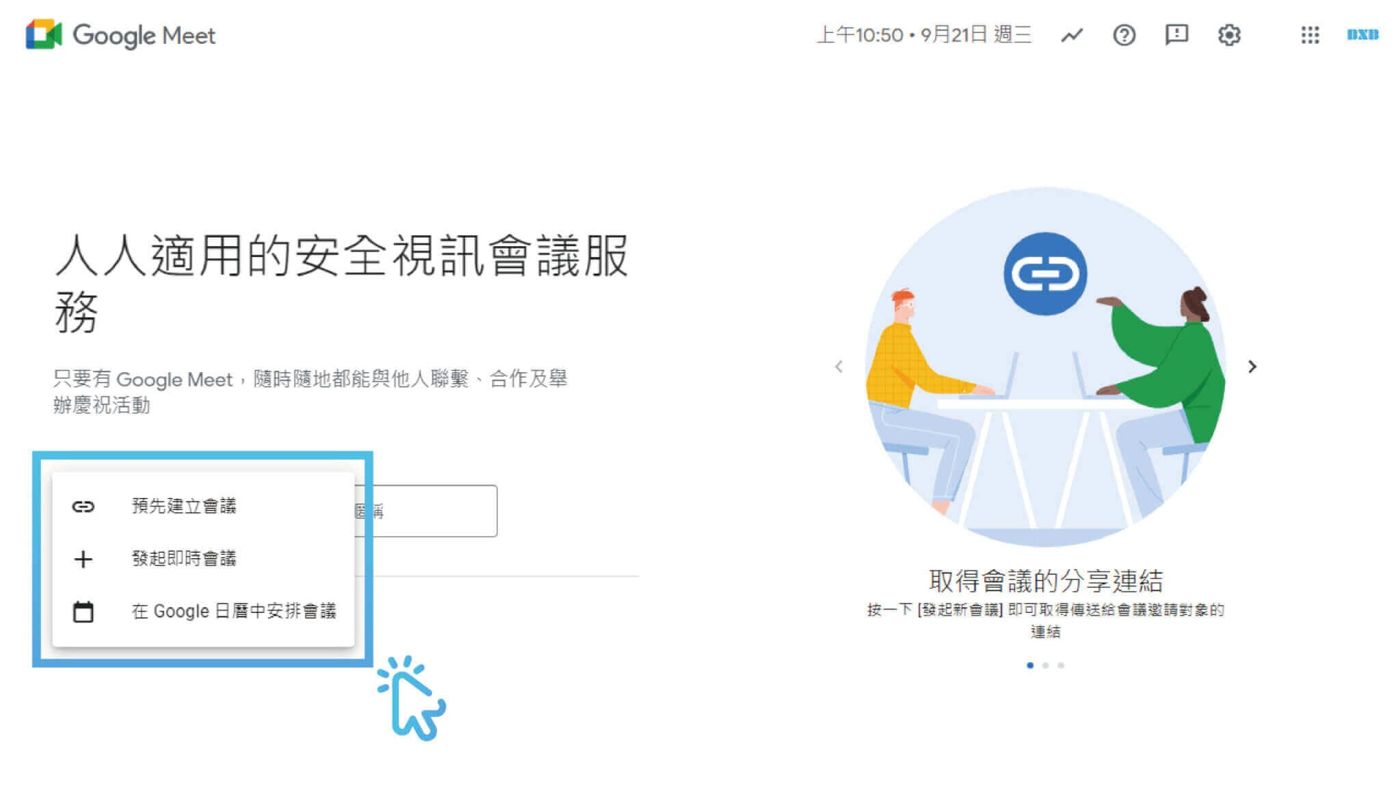
In addition to clicking [Start a meeting] and [Enter a code or link] on the Google Meet page, you can also easily join online meetings through the following two paths, and view meeting information on Google Calendar to remind participants of the meeting time.
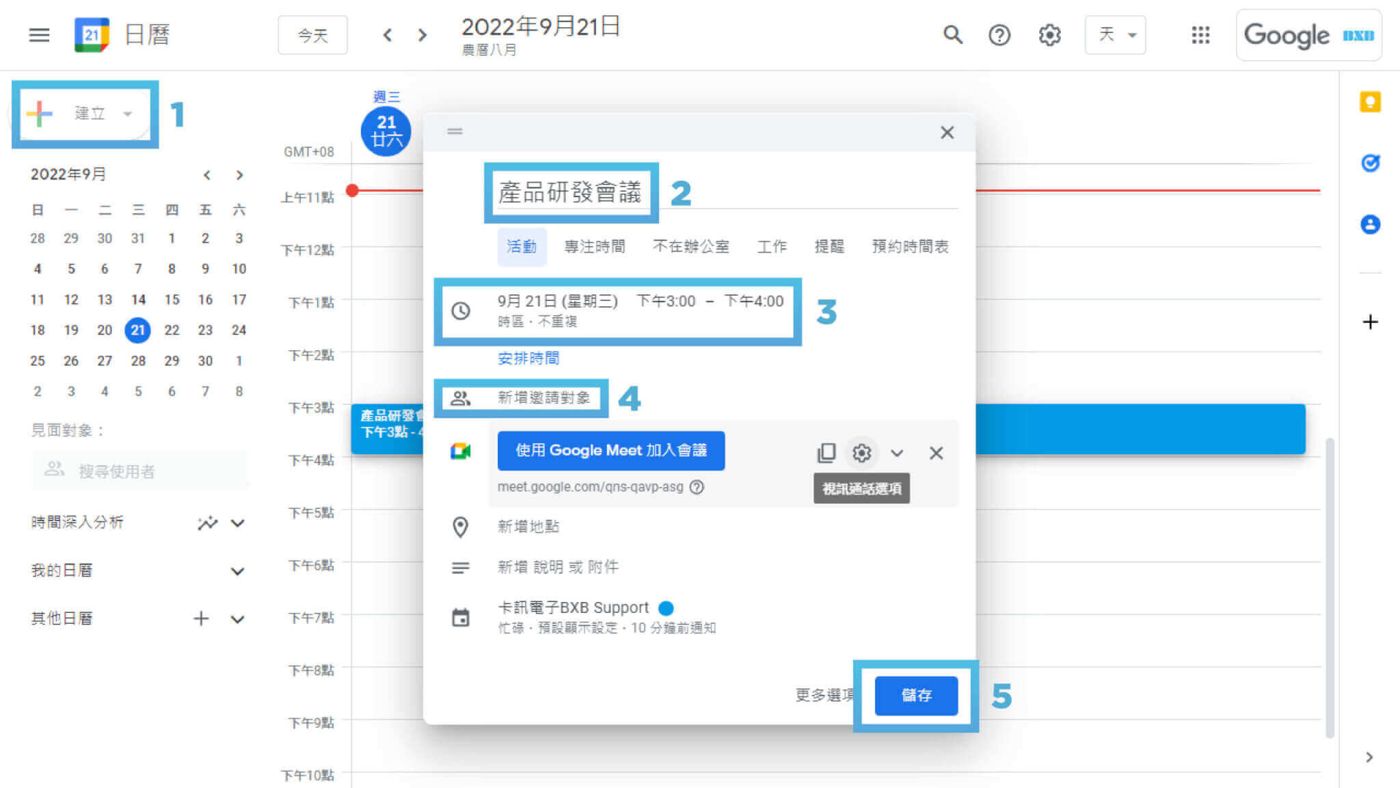
Method 1: Google Calendar
(Most convenient for Google Calendar users)
Open Google Calendar and click [Create] event on the left side of the screen.
Enter the event or meeting name, and set the meeting time.
Enter the name or email of the meeting invitees.
Click [Save] to send the invitation information to the designated recipients.
Method 2: Gmail
(Can be joined and used even without a Google account)
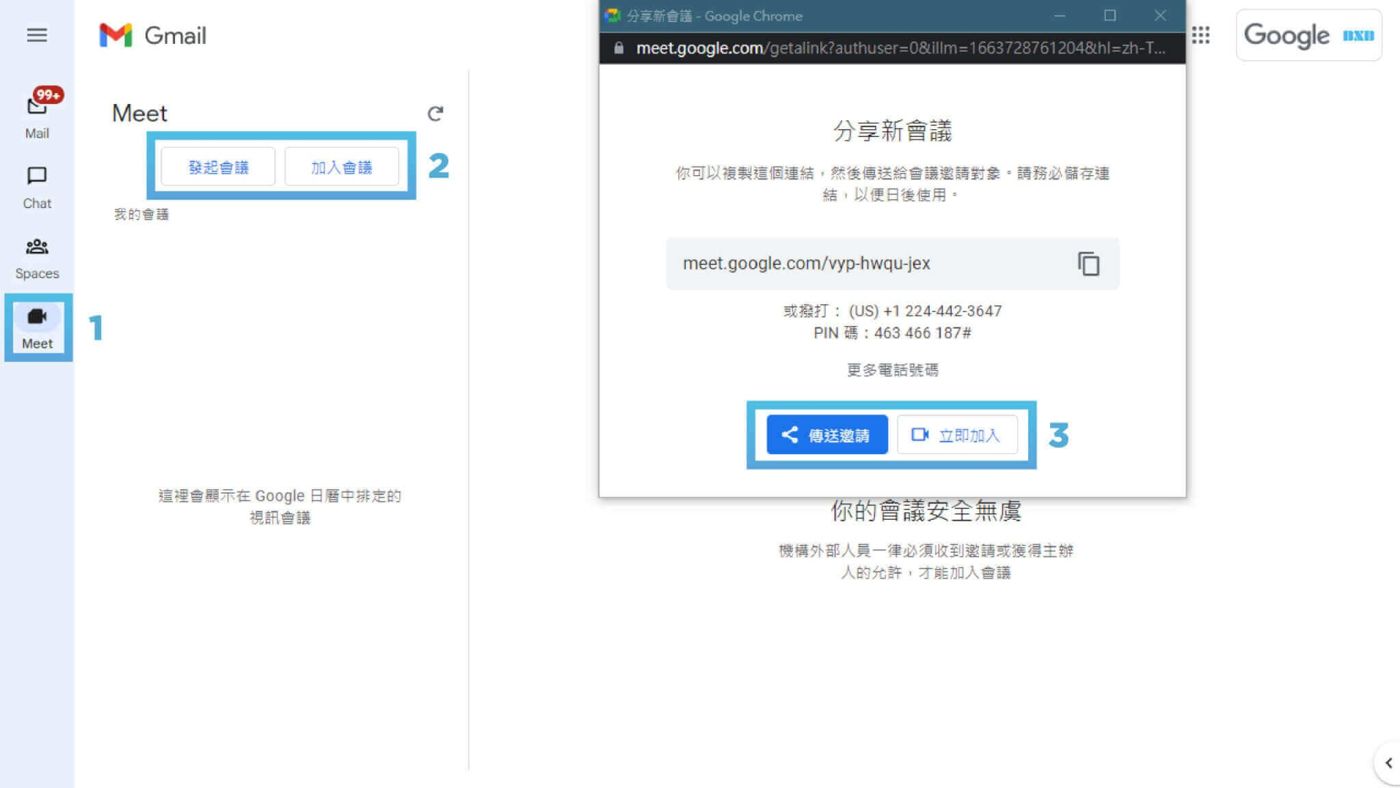
Open Gmail and click [Meet] on the left to start Google Meet.
To start a meeting, open the page and click [Start a meeting], then copy the meeting link to share with invitees.
After starting the online meeting, click [Join Now] to start the meeting.
Use 【Record Meeting】 to easily trace key information
Using manual meeting minutes can easily lead to missing or incorrect key information, which can significantly impact subsequent actions. Complete recording and archiving provide the most accurate way to trace information. Sharing the meeting content also allows those who did not attend to understand the detailed proceedings.
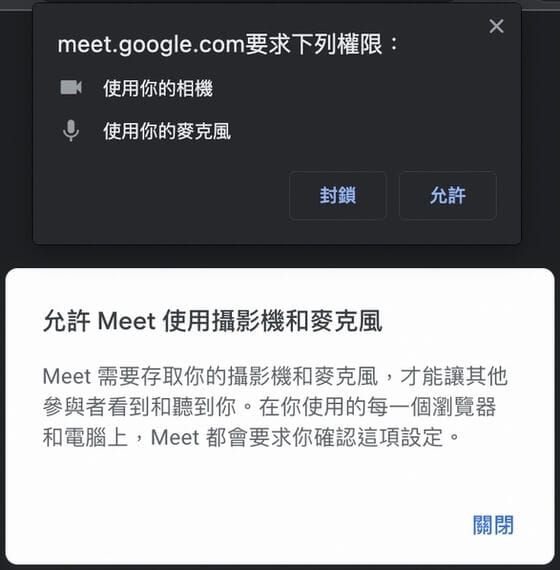
Allow device access in Chrome
After entering Meet, allow camera and microphone access.
Enable camera access on macOS
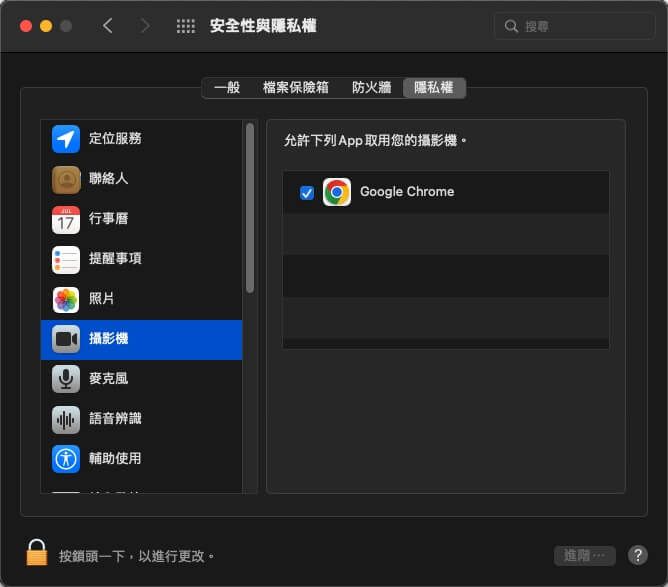
Go to [System Preferences] > [Security & Privacy] on your computer.
Select [Camera] under [Privacy], find the application you want to run Meet (such as Safari or Chrome), and then check the corresponding box for that application.
How to Record a Meeting
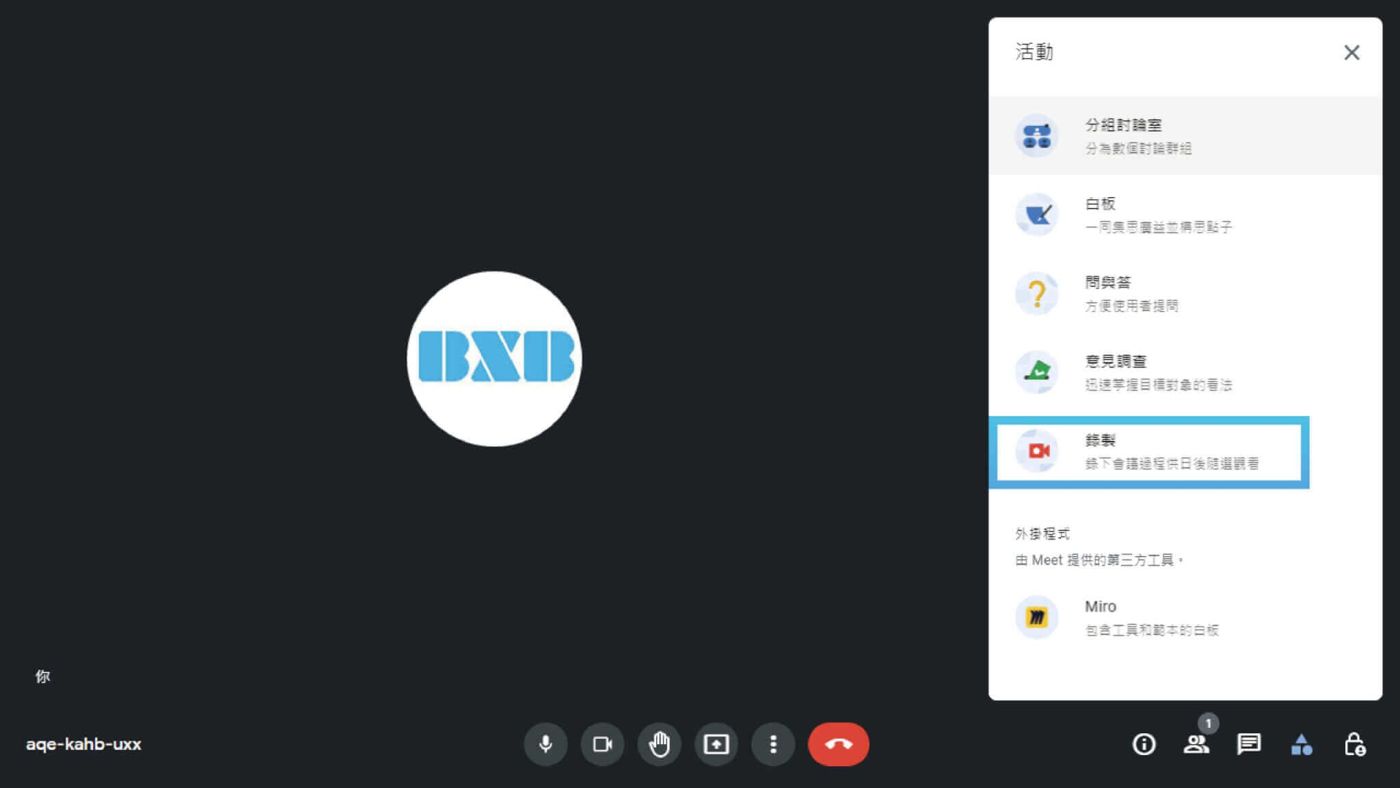
In the Meet interface, click the [Activities] icon in the bottom right corner.
Click [Record], press [Start Recording], and click [Start] after confirming the meeting status.
Operation Tips
When recording starts, participants will receive a notification. When participants leave the meeting, the system will automatically stop recording and save the file.
The recorded content is stored in the meeting organizer's 'My Drive' > 'Meet Recordings' folder.
The meeting host and participants will also receive an email containing the link to the recorded content.
Use 【Instant Message】 for clear and complete text discussions
During video calls, in addition to transmitting voice and video, you can also send messages to other participants. If the [Record Meeting] function is enabled, the system will also save the [Instant Message] conversation content together.
How to Send Instant Messages
In the Meet interface, click the [Chat] icon in the bottom right corner.
Enter message and press [Send].
𝗕𝗫𝗕 [Smart Dashboard] Discussion and analysis at a glance via AVIoT
(Audio-Visual IoT) AV IoT utilizes network protocols to perform data transmission and device management for all audio-visual equipment. Large smart signage can be set up according to scenario requirements, allowing arbitrary switching of display screens to make remote meetings and cloud collaboration more comprehensive, meeting the high flexibility and rapid adjustment agility required by digitally transforming organizations. It perfectly unleashes Google Meet-related functions: Heard clearly, seen clearly
Discuss and interact in Meet with high-definition cameras
Full-time automated voice source tracking focuses the camera on the speaker, working seamlessly with tabletop noise-canceling microphones
, clearly transmitting the video and audio of every participant.
Multiple Charts・Rapid Integration
Share Meet information and, through simple movement, output the video sources of all devices onto a video wall for presentation
, providing a larger and wider field of view, allowing participants to see complete data and information at a glance, making thoughts more coherent and overall decisions more comprehensive after careful consideration.
Professional Image・Dynamic Presentation
In Meet multi-party meetings, you can change the screen layout and background in real-time according to your needs.
, customize brand identity, theme visuals, or partially zoom in on the screen, and even stream in high definition to major platforms simultaneously, showcasing digital value.
Partner Mode・Clear & Complete
In Meet, Companion Mode can be enabled across multiple devices on high-definition and bright video walls
for video distribution, which not only clearly presents presentation screens, speaker views, on-site views, and remote views, but also allows viewing the speaker's facial expressions.
Online & Offline・Live Streaming & Recording
Although Meet can record meetings, a single camera cannot fully capture offline multi-person meetings. By integrating live streaming and recording functions
, synchronously integrating online and offline AV feeds, which can be streamed live to public platforms or directly saved as data for internal education, training, and knowledge management.
Summary
This article introduces the personal operation part. Google Meet is an easy-to-use video conferencing platform,
Ensure video conference security. There are also explanations on [Team Collaboration] and [Screen Editing]
] section, and we hope these practical tips are helpful to you.
BXB will introduce related content in the future. If you want to learn more
For more conference knowledge, you can follow