Buying Guide・2022-10-28
Practical Tips [Google Meet Guide: Team Collaboration Edition] Easy interaction and quick start
Industry Insights
Currently, the video conferencing software platforms used by most people include Google Meet, Microsoft Teams, Zoom, Cisco Webex, etc. Each software has its own features, but Google Meet was the most widely used video tool by industry, government, and academia during the pandemic. Its advantages include an intuitive user interface, multi-participant support, high security, screen sharing, and encrypted data transmission. This article will show you how to use its built-in features to make collaboration and discussion more convenient.
Table of Contents Tip 1: Raise Hand to Ask Questions Tip 2: Group Discussion Tip 3: Whiteboard Collaboration Tip 4: Opinion Poll Exclusive Tip: Smart Signage
Using [Raise Hand to Ask] makes your expression easier to be noticed
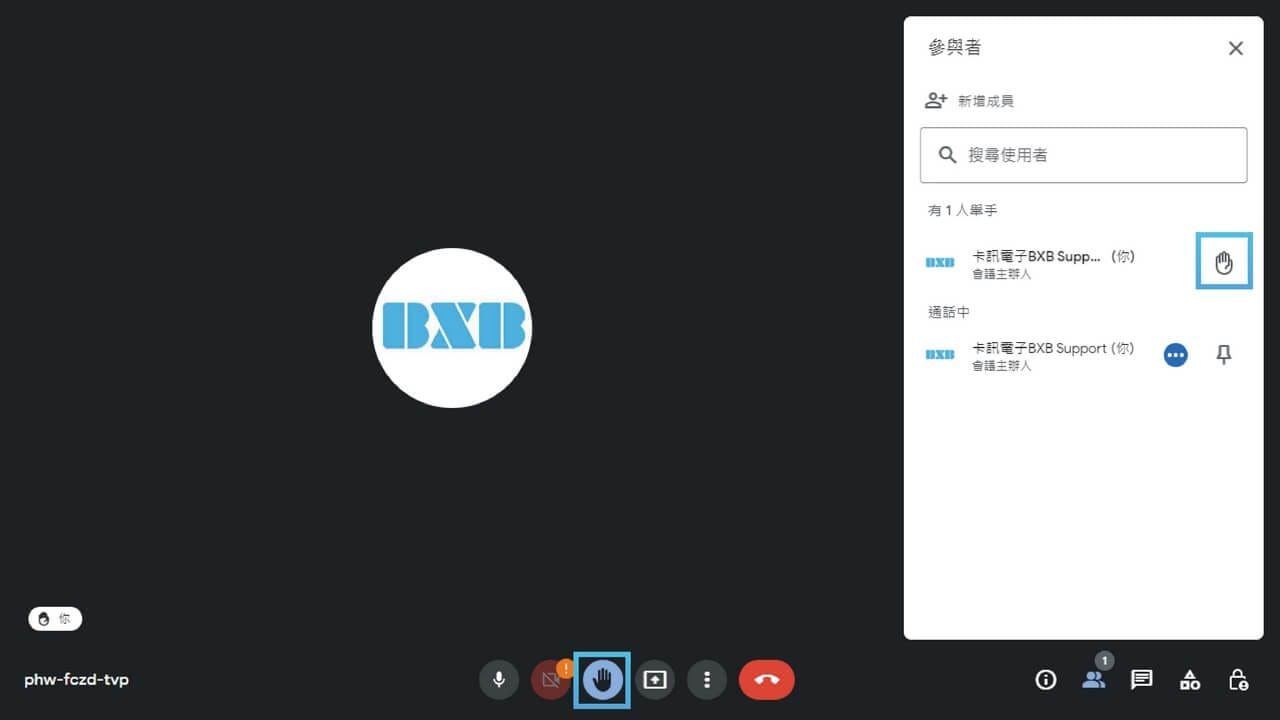
Through the raise-hand function, the meeting host is notified that a participant wishes to speak. The system sends notifications to the host in the order of hands raised. After the participant speaks or asks a question, they can lower their hand, allowing other participants to speak.
How to Request to Speak
At the bottom of the Meet screen, click the [Raise Hand] icon.
Click the same icon again to lower your hand.
Operation Shortcuts
Simply press ctrl + alt + h to 【Raise Hand】 and ask a question.
Use [Group Discussion] to collaborate and improve efficiency. In large conferences, due to the constraints of the number of participants and time, if you want to conduct group discussions,
is simply impossible. Therefore, we can use Meet's [Breakout Rooms] feature to group participants. During the discussion, the meeting host can enter each breakout room to understand the situation or participate in the discussion.
Through this feature, group discussions can be conducted quickly and with focus, allowing precise time control and monitoring of each group's status—making it even more efficient than face-to-face discussions in physical meetings! Pre-creating breakout rooms also ensures a smoother meeting process.
Creating Breakout Rooms in Meetings
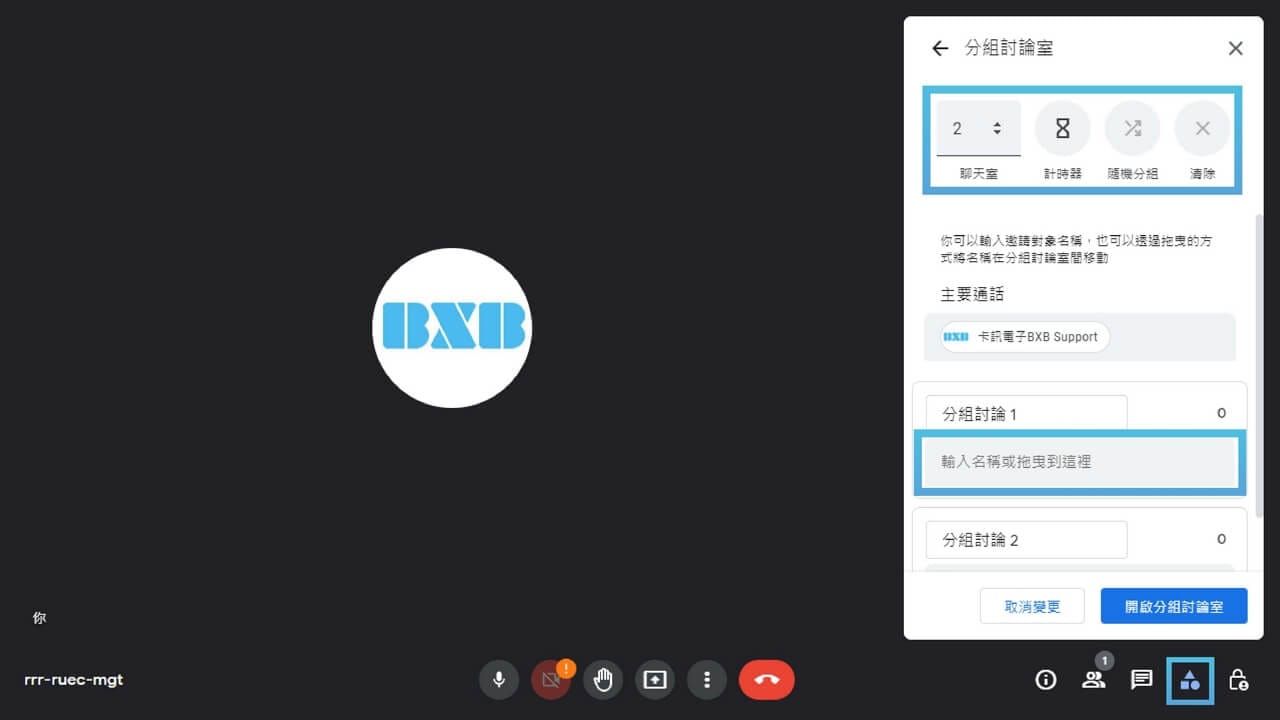
In the bottom right corner of the Meet interface, click the 【Activities】 icon to open.
You can set the number of chat rooms, group names, timers, and random grouping.
Participants can be selected for grouping by entering their names or dragging them directly.
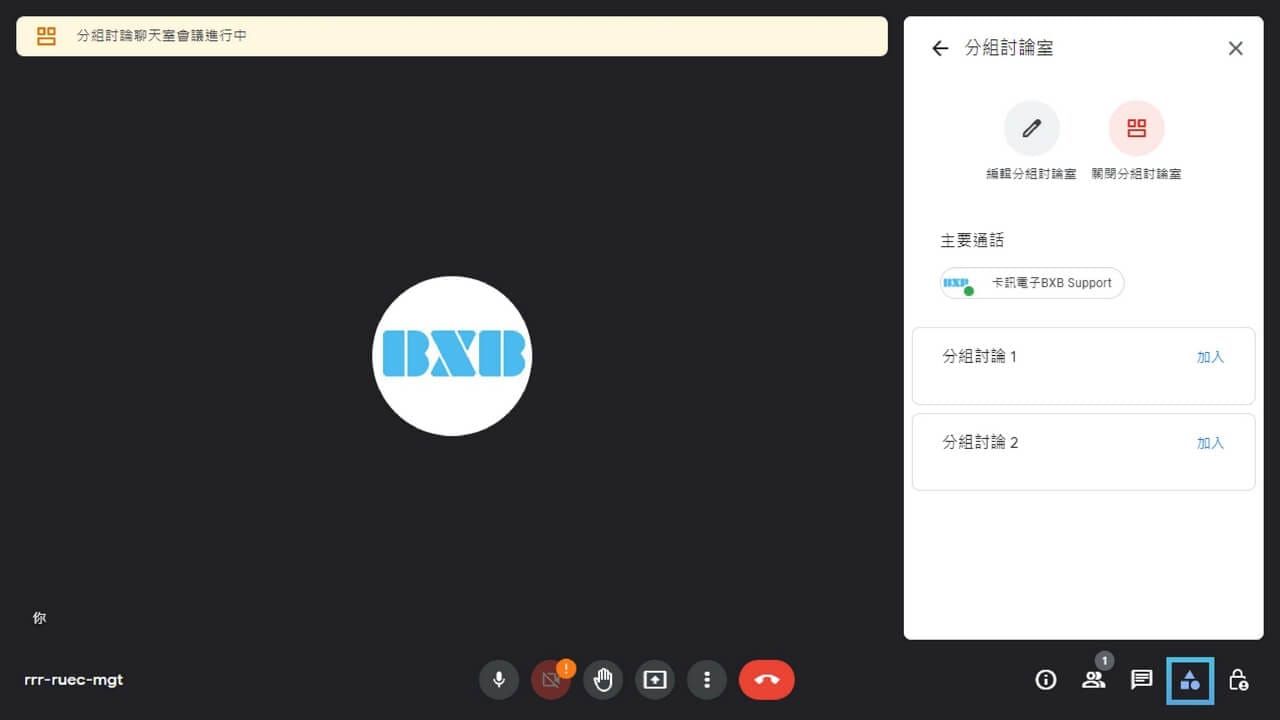
Once set up, click [Open Breakout Rooms] and participants can start discussing.
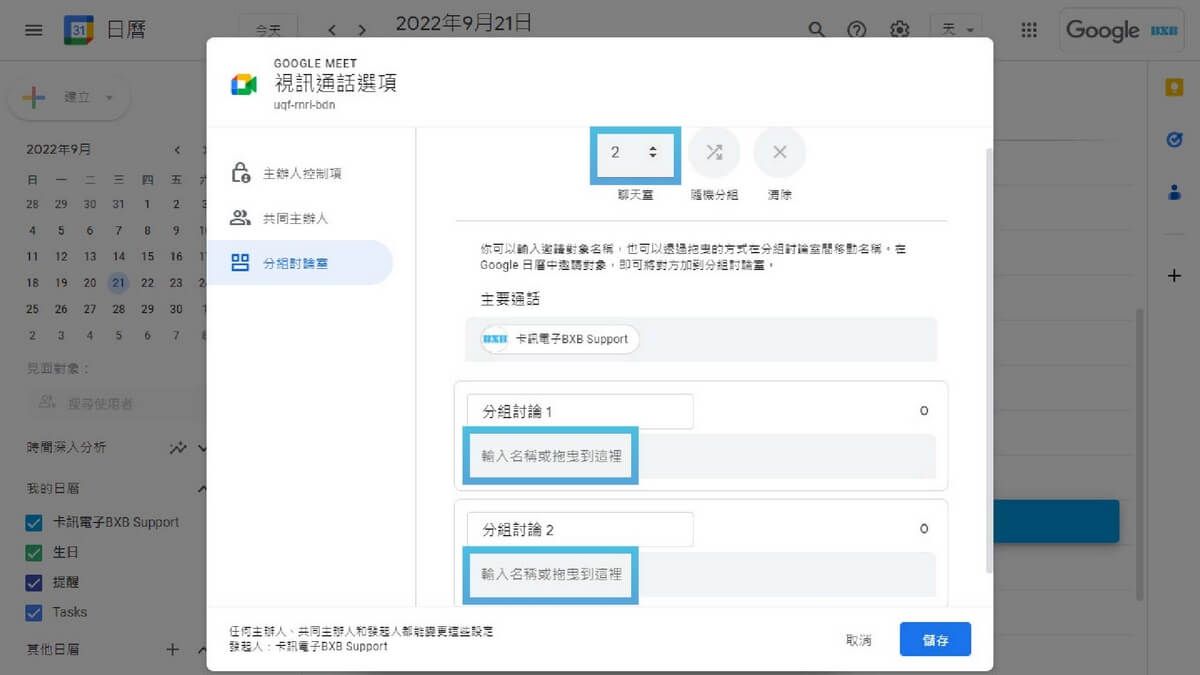
Pre-create breakout rooms (using Google Calendar)
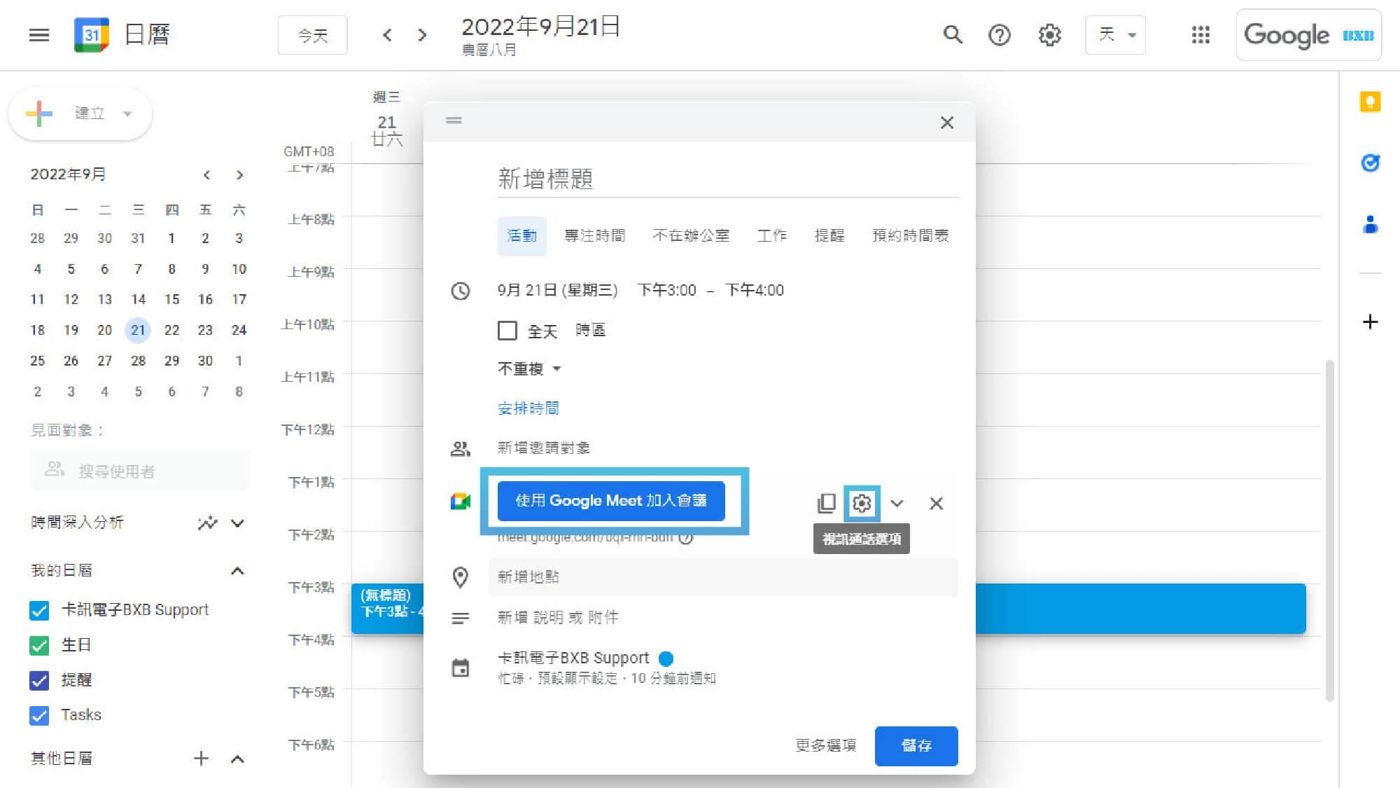
Open Google Calendar and click [Create] on the left side of the screen.
Enter the meeting or course name, set the meeting or course time, and add participants.
Click [Join meeting using Google Meet] and click the gear icon next to it.
Select the number of [Breakout Rooms] and drag and drop participants directly to join.
Click [Save]. When it is time to enter the video discussion, breakout rooms can be used.
Use [Whiteboard Collaboration] to brainstorm and present ideas visually
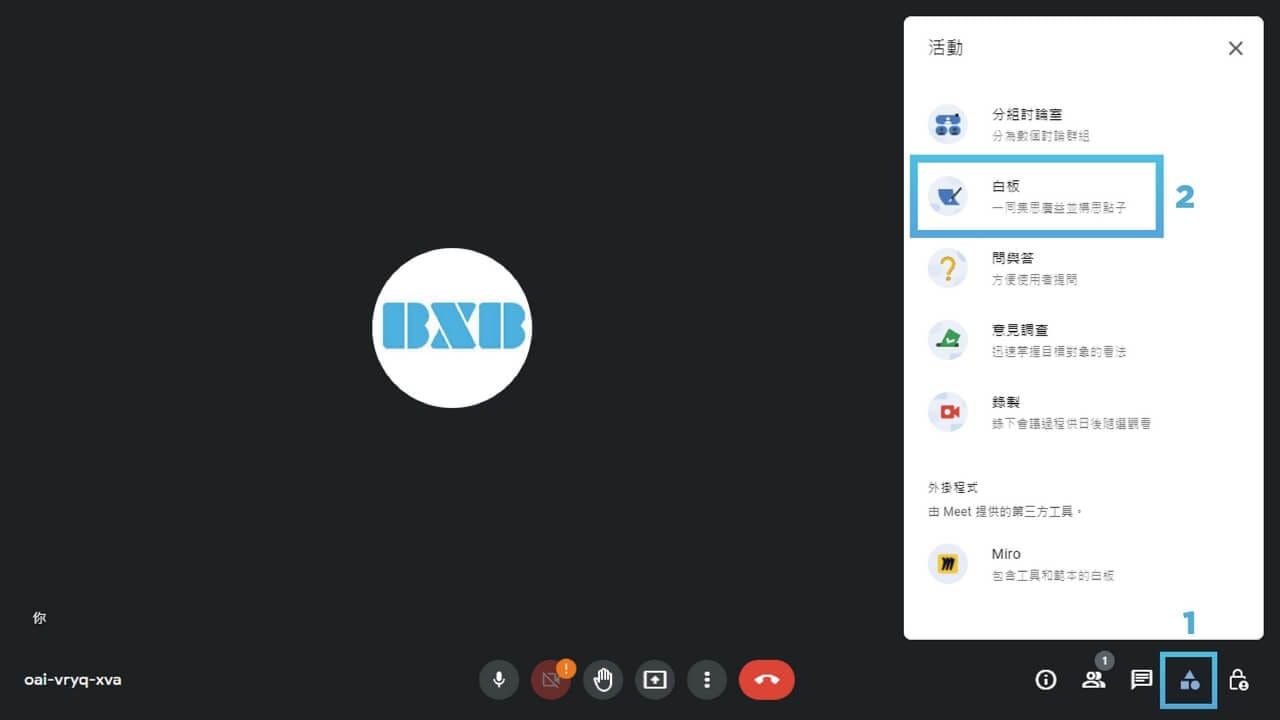
Meet has a virtual whiteboard [Jamboard]. In addition to replacing physical whiteboards in meetings and training courses, this feature also allows team collaboration and brainstorming to be presented visually, making collaboration faster and more efficient.
Create and open Jamboard
In the bottom right corner of the Meet operation screen, click the [Whiteboard] icon.
You can directly 【Create new whiteboard】 or 【Select file from Drive】 to open a pre-created Jamboard.
Use [Polls] to instantly vote on everyone's ideas
To increase interactivity, you can use [Polls] and [Q&A] in Meet to make voting and real-time choices easier for everyone. All participants can ask questions, and the questions remain displayed on the meeting screen, allowing everyone to vote openly or anonymously. After the meeting, the system will automatically compile the survey results into a detailed report of all questions and send it to the meeting host, making Q&A more immediate and statistics more convenient.
Create [Survey]
In the bottom right corner of the Meet screen, click [Activities] and then select [Polls].
Click [Start a poll], enter the poll question, and add options.
Finally, click [Start] to launch the poll for participants to answer.
Create [Q&A]
In the bottom right corner of the Meet screen, click the rightmost [Host controls] icon.
Scroll to [Meeting Activities] and turn on the [Allow questions in Q&A] toggle.
𝗕𝗫𝗕 [Smart Dashboard] Discussion and analysis at a glance via AVIoT
(Audio-Visual IoT) AV IoT utilizes network protocols to perform data transmission and device management for all audio-visual equipment. Large smart signage can be set up according to scenario requirements, allowing arbitrary switching of display screens to make remote meetings and cloud collaboration more comprehensive, meeting the high flexibility and rapid adjustment agility required by digitally transforming organizations. It perfectly unleashes Google Meet-related functions: Heard clearly, seen clearly
Discuss and interact in Meet with high-definition cameras
Full-time automated voice source tracking focuses the camera on the speaker, working seamlessly with tabletop noise-canceling microphones
, clearly transmitting the video and audio of every participant.
Multiple Charts・Rapid Integration
Share Meet information and, through simple movement, output the video sources of all devices onto a video wall for presentation
, providing a larger and wider field of view, allowing participants to see complete data and information at a glance, making thoughts more coherent and overall decisions more comprehensive after careful consideration.
Professional Image・Dynamic Presentation
In Meet multi-party meetings, you can change the screen layout and background in real-time according to your needs.
, customize brand identity, theme visuals, or partially zoom in on the screen, and even stream in high definition to major platforms simultaneously, showcasing digital value.
Partner Mode・Clear & Complete
In Meet, Companion Mode can be enabled across multiple devices on high-definition and bright video walls
for video distribution, which not only clearly presents presentation screens, speaker views, on-site views, and remote views, but also allows viewing the speaker's facial expressions.
Online & Offline・Live Streaming & Recording
Although Meet can record meetings, a single camera cannot fully capture offline multi-person meetings. By integrating live streaming and recording functions
, synchronously integrating online and offline AV feeds, which can be streamed live to public platforms or directly saved as data for internal education, training, and knowledge management.
In summary, this article introduces team collaboration
portion, Google Meet is an easy-to-use video conferencing platform
, making opinions and team ideas clearer. It also explains [Screen Editing] and [Personal Operation]
] section, and we hope these practical tips are helpful to you.
BXB will introduce related content in the future. If you want to know more
For more conference knowledge, you can follow