Buying Guide・2022-11-14
Practical Tips [Google Meet Guide: Screen Sharing Edition] One-click meeting screen sharing

Industry Insights
Google Meet was originally a paid service, but with the impact of the COVID-19 pandemic, Google made it free for all users, solving remote work, distance learning, and video conferencing challenges for most people. It offers group video calls, screen sharing, and real-time captioning, and can even host meetings of up to 250 people, record meeting content, and stream live. This article teaches you how to easily share your screen and change backgrounds, synchronizing communication visually for smoother discussions.
Table of Contents Tip 1: Screen Sharing Tip 2: Companion Mode Exclusive Tip: Smart Signage
Use 【Screen Share】 for clear explanations with visual synchronization
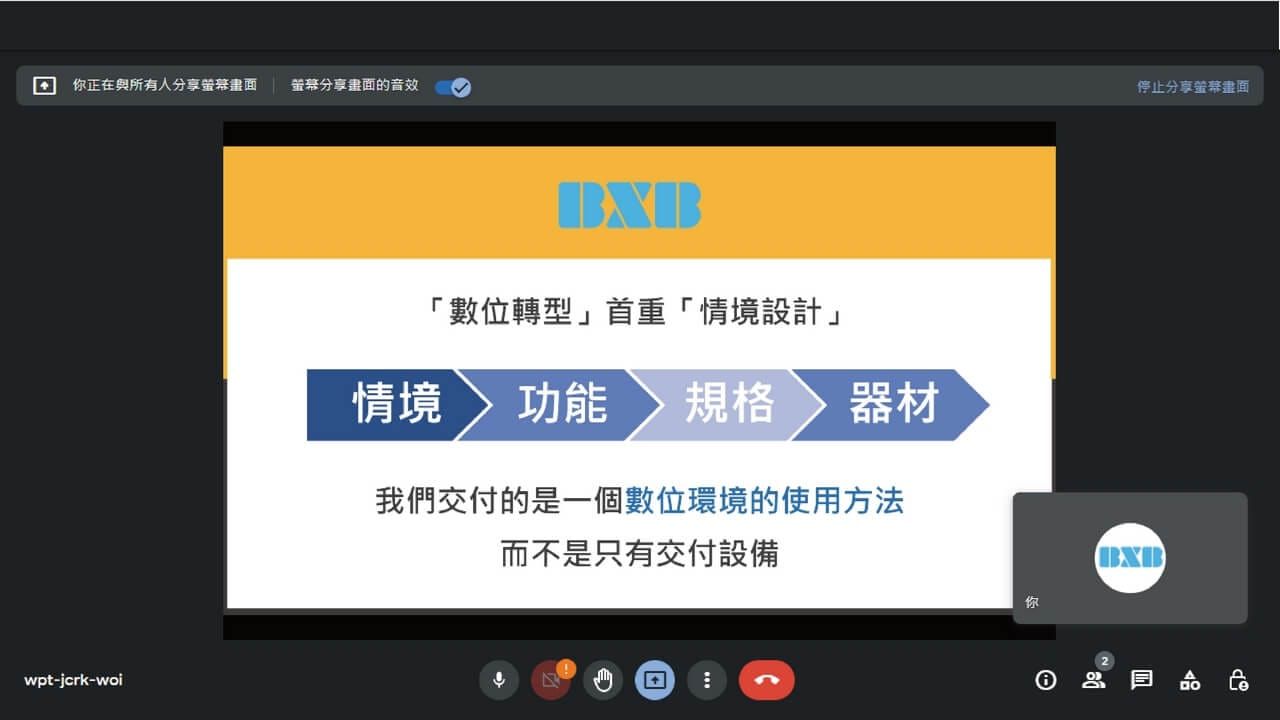
During multi-person video conferences, we can share our screens to synchronize other participants on the Meet screen. As the saying goes, "seeing is believing." This step makes our presentations much clearer and allows us to co-edit Google Docs, Slides, and Sheets, boosting team productivity.
How to Share Screen in a Meeting
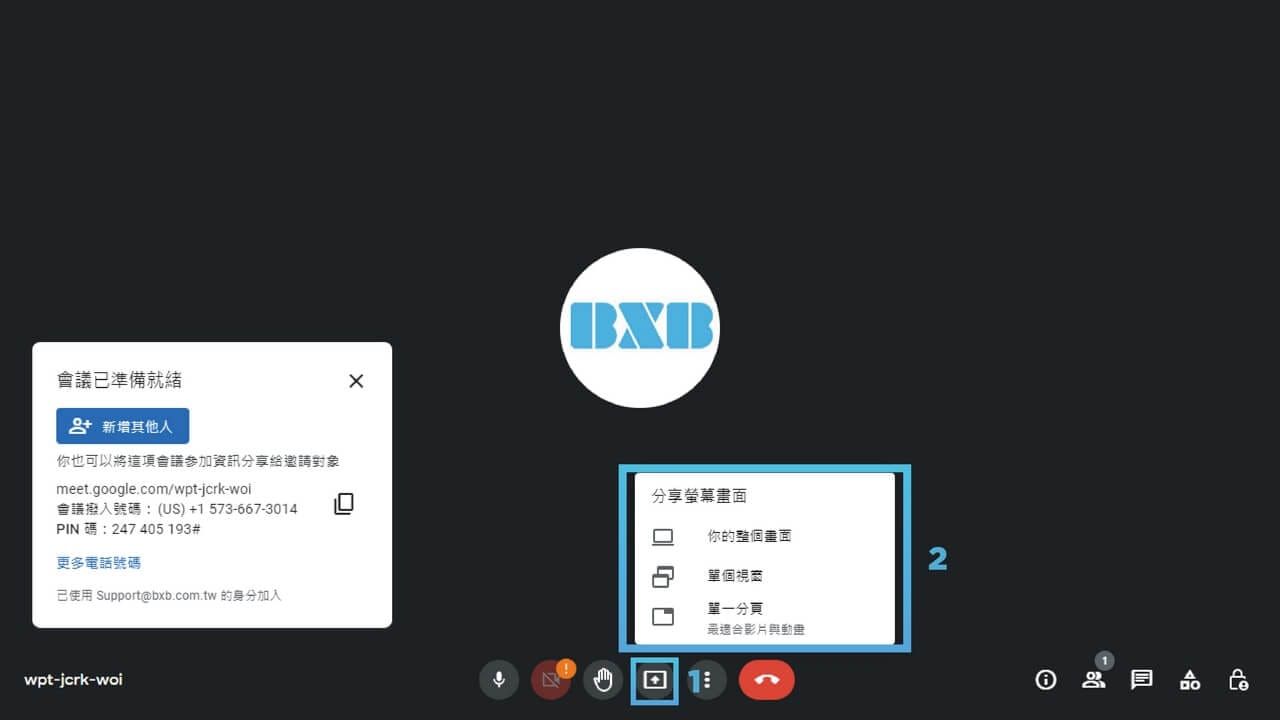
In the bottom right corner of the Meet interface, click the [Present now] icon.
You can select [Your Entire Screen], [A Single Window], or [A Single Tab].
Finally, click [Share] to share your screen.
Share Google Docs, Slides, and Sheets to Meet
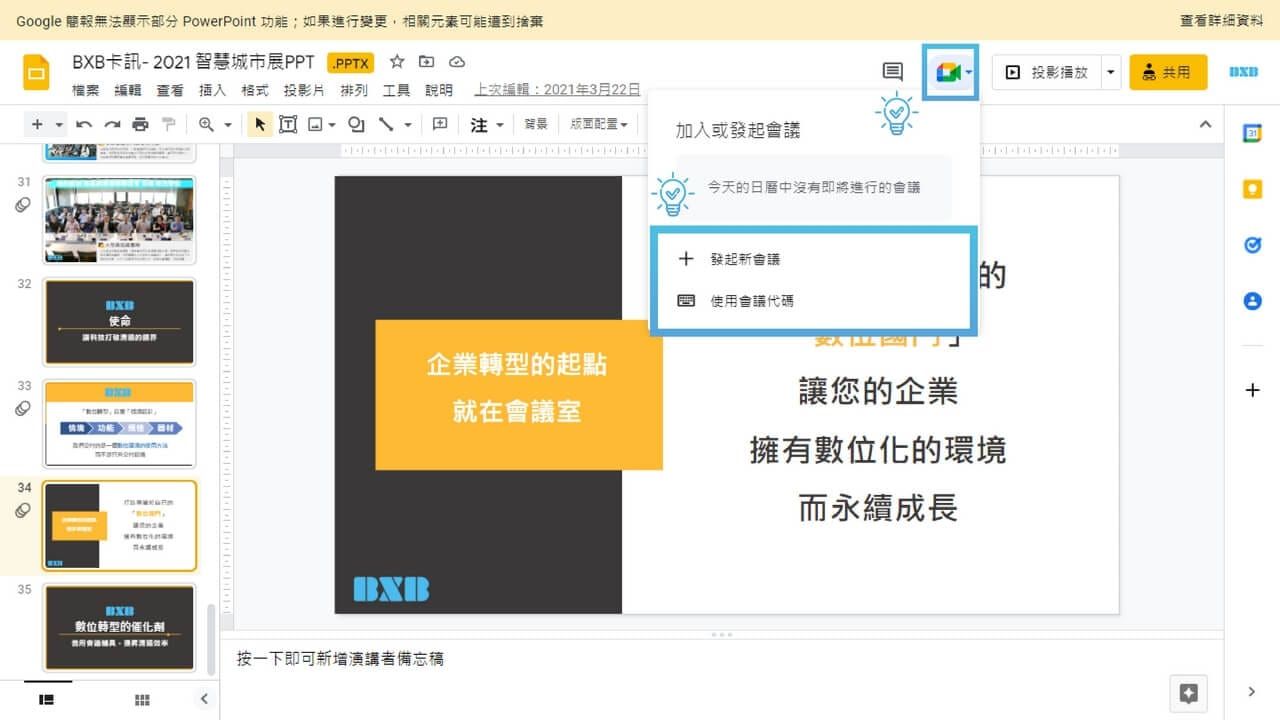
Open files in Google Docs, Slides, and Sheets.
Click the [Meet] icon at the top to join the meeting, then follow the same steps as screen sharing.
Excellent 【Companion Mode】 to master a comprehensive view of the meeting
When hosting multi-person video conferences using Google Meet, we may need two screens: one for reading presentation content and another for observing participants' reactions. By using Companion Mode, you can easily utilize multiple devices to join and view the meeting screen in Companion Mode. This not only prevents interference from other devices but also allows you to keep track of every screen in the meeting.
How to join in Partner Mode
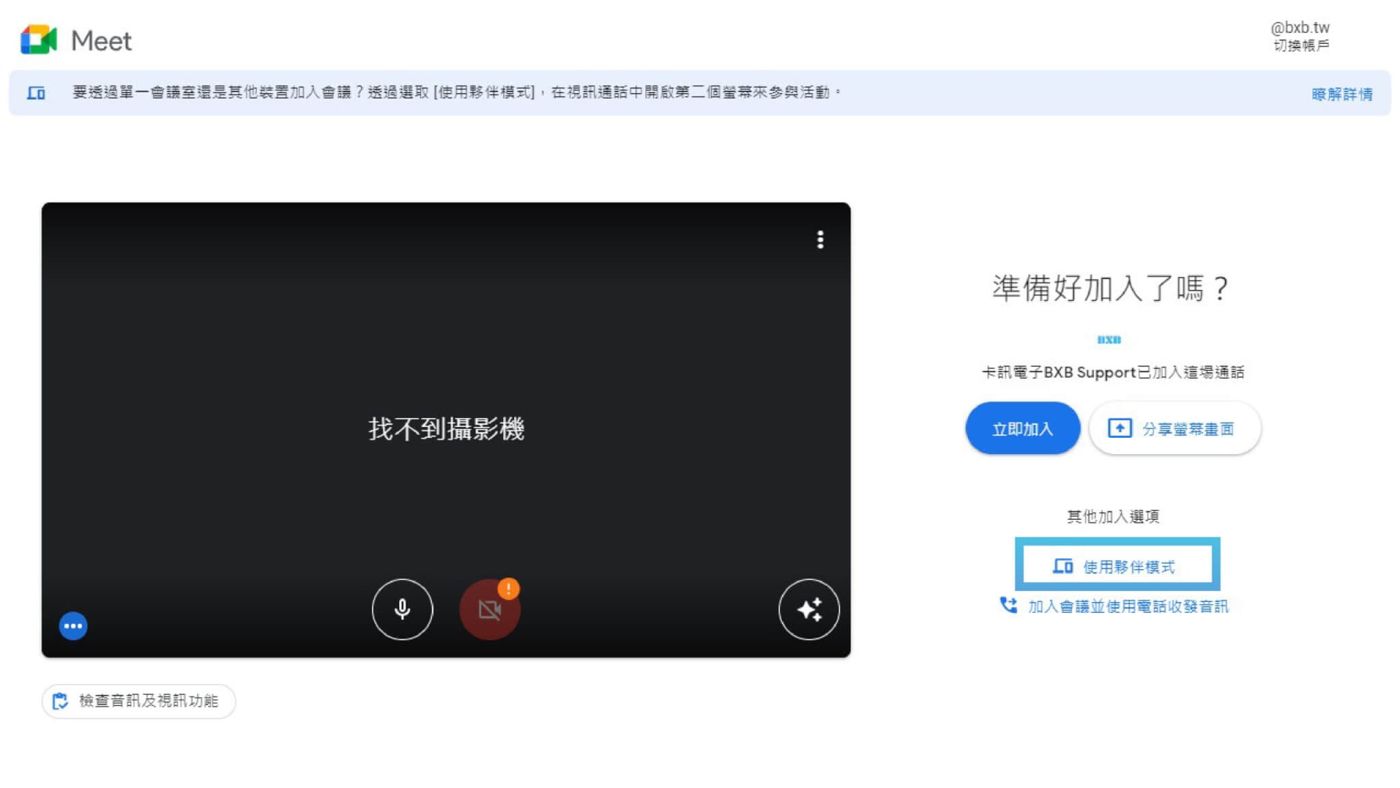
Using meeting invitation: Click [Join] on the invitation, then click [Use Companion Mode] below.
Use short link: Enter in browser
g.co/companion
Then, select a scheduled meeting or enter a meeting code on the Meet home screen.
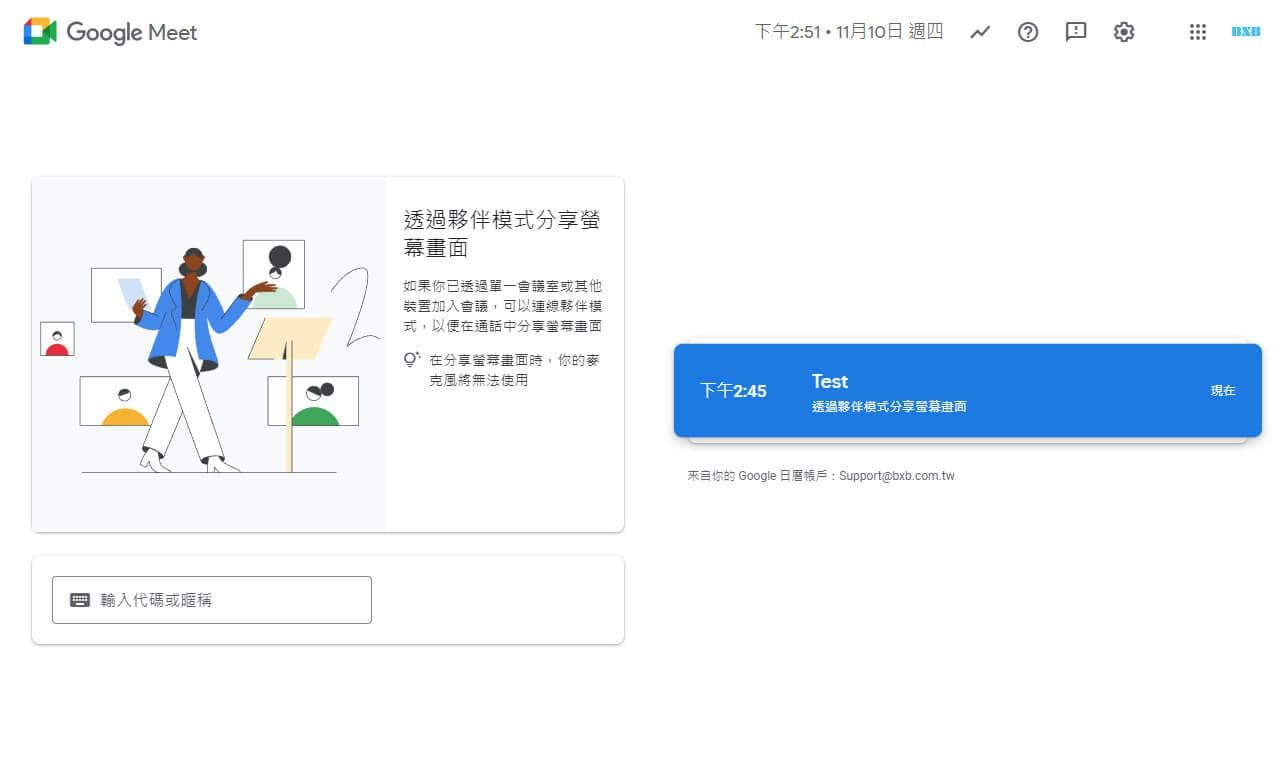
Share your screen using a short link: enter g.co/present in your browser
Then select the meeting on the Meet home screen and choose the screen sharing option.
Operations and Settings in Companion Mode
Turn on camera: You can join the meeting with both audio and video enabled, and other participants will see your image. However, Companion Mode has no audio streaming, so you will not be displayed as the current speaker.